Source on your site
Normally ThemeForge fetches your source from an address on the web. There is a second mode: the source lives on your own hosting, inside the site itself. You upload a ZIP once in wp-admin — from then on the theme is built, updated and edited from there. No GitHub, no separate hosting for the source, no browser tab left open.
When to choose this mode
- An AI generated your site and it sits in a folder on your machine rather than at a public address.
- You have a builder export or plain static markup: HTML, CSS, images, fonts.
- You want to edit the markup on the site itself — by hand in the editor or through an AI assistant — and rebuild the theme from wp-admin.
If your source is published at an address and that is where you edit it, the normal mode is simpler: ThemeForge fetches the pages itself.
Two warnings that matter more than anything else here
There is one copy of your source, and it is on your hosting
ThemeForge does not store your source. Only HTML and CSS travel to the builder: the server builds the theme and deletes what it received. The finished archive is deleted as soon as your site downloads it, and after 24 hours at the latest. Images, fonts and other binary files never travel at all — they are laid out locally on your site.
So a backup of the source is a backup of your site, and that one is yours to make. The storage lives inside wp-content/uploads, so an ordinary backup plugin or a hosting backup picks it up together with the site. On top of that, keep the ZIP you uploaded.
An AI assistant can change anything in the source
The access you grant an AI is not access to the text on your pages — it is access to the source itself: it can rewrite a page completely, add a file and delete a file. That is deliberate: without it, "rebuild this page" is impossible.
There are limits, described below: writing is off by default for an outside assistant, larger changes wait for your approval, and recent changes sit in a journal and can be undone one by one. None of them replaces a copy of the archive on your own disk.
How it works
- In the project you tick "the source will be uploaded on the site". The generate button starts handing out a blank theme.
- The blank is a real theme: the runtime, the theme panel and the update mechanics, only without page templates. Templates appear after the first build.
- The uploaded archive is unpacked into private storage: files are kept under hashed names, only a PHP router serves them, and only to a user logged into wp-admin. There is no link you could forward to someone outside.
- On update, HTML and CSS go to the builder, a finished theme comes back and installs itself. Images and fonts stay on the site and are laid out into the theme locally.
- Edited the source? Press Update again. There is nothing to upload — the source is already on the site.
Step 1. The project in the ThemeForge panel
- Create a project as usual.
- Instead of a source address, tick "the source will be uploaded on the site" and confirm the switch.
- The generate button becomes "Download the blank theme", and updating moves to the site's own admin — the panel button no longer works for this project.
Until the archive is uploaded there is nothing to build, and the build says exactly that. Expected, not a fault.
The tick can be removed again
It switches both ways and never deletes the source, the theme or the page list. Untick it and building from an address returns — which needs a working source address; the source already uploaded to the site simply stops being used.
Step 2. The blank theme
- Download the blank from the project.
- In WordPress: Appearance → Themes → Add New → Upload Theme → pick the ZIP → install and activate.
- A ThemeForge section appears in the admin menu with the tabs "Theme update", "Site source", "Markup", "AI", "Project pages" and "Log".
Right after activation the site looks empty — there are no templates yet. They arrive with the first build.
Where the project id and key are
An AI assistant can build the theme for you without the panel: it sends the archive to the project and receives the finished theme. For that it needs two values, and the panel does not display them yet — they are inside the blank theme you downloaded: the project id in themeforge_origin.php, the key in tf-update-key.php. Treat the key like a password: anyone who has it can build this project.
Step 3. Upload the site archive
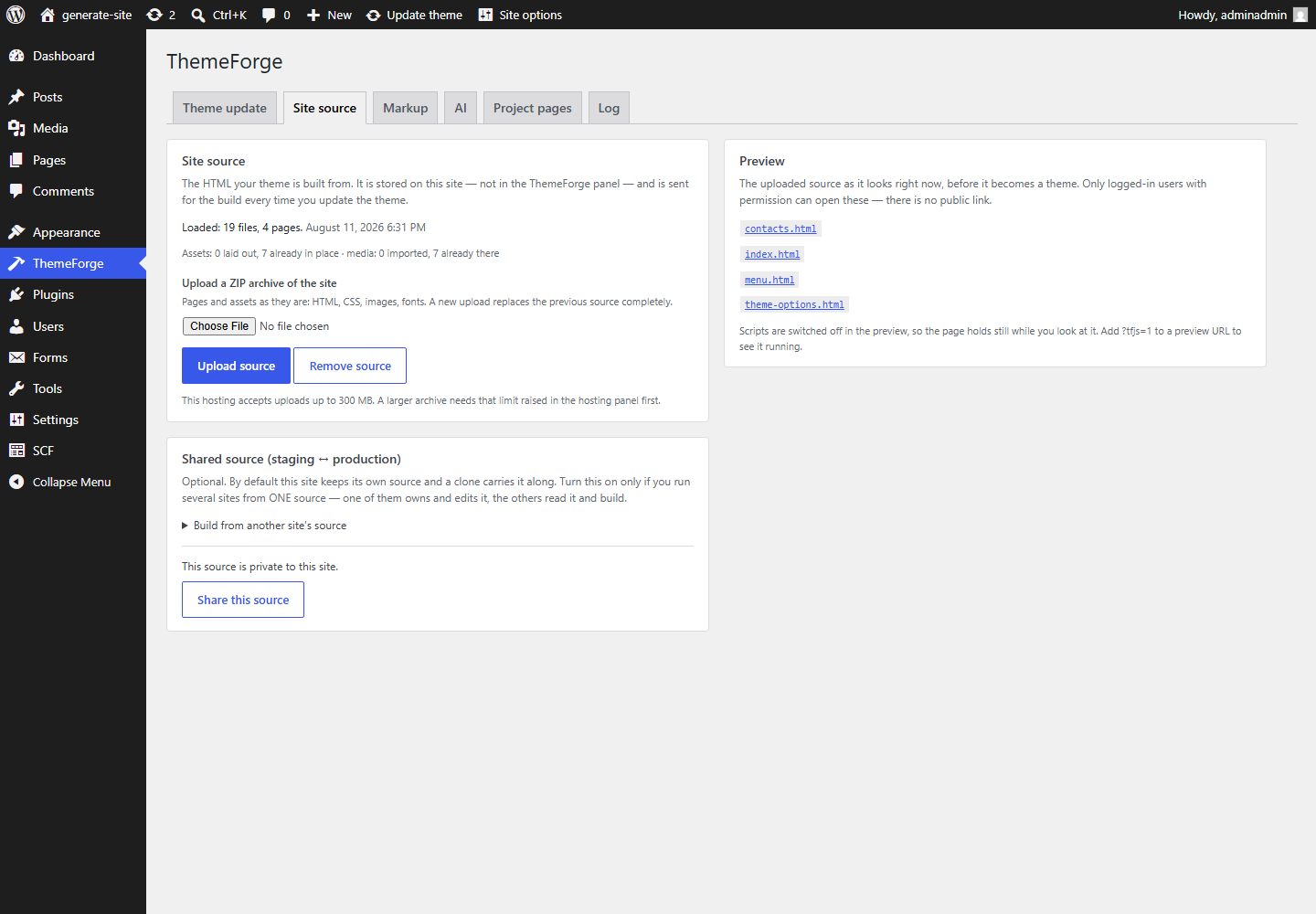
- Open ThemeForge → "Site source".
- Pick the ZIP and press "Upload source".
- The screen reports "Loaded: N files, M pages" — those two numbers tell you at once that the archive arrived whole.
What belongs in the archive
Pages and assets as they are: HTML, CSS, images, fonts. The folder structure is preserved, so relative links inside the pages keep working.
PHP and other executable files are never unpacked from the archive. That is not a markup restriction but a safeguard: the archive comes from outside, and nothing in it should ever run.
A new upload replaces the previous source completely. Always the whole archive, never a piece of it.
If the archive does not get through
The upload limit of your hosting is printed under the file field. A file larger than that never reaches WordPress at all — which is why the limit is shown up front rather than after a failed attempt.
Fix it in the hosting panel: the PHP settings upload_max_filesize and post_max_size (usually under "PHP settings"). Raise both — the smaller one wins — and reload the page: the limit on screen updates.
Do not drop images to fit the limit: they never travel to the builder, but they must be on the site — the theme's own files are laid out from them.
Step 4. The page list
The "Project pages" tab shows the pages found in the archive and a "Write this list to the project" button. The list comes from what the site actually contains rather than from guesswork, and it replaces the one stored in the project.
Naming: index.html is the home page, about.html becomes /about, nested folders keep their path.
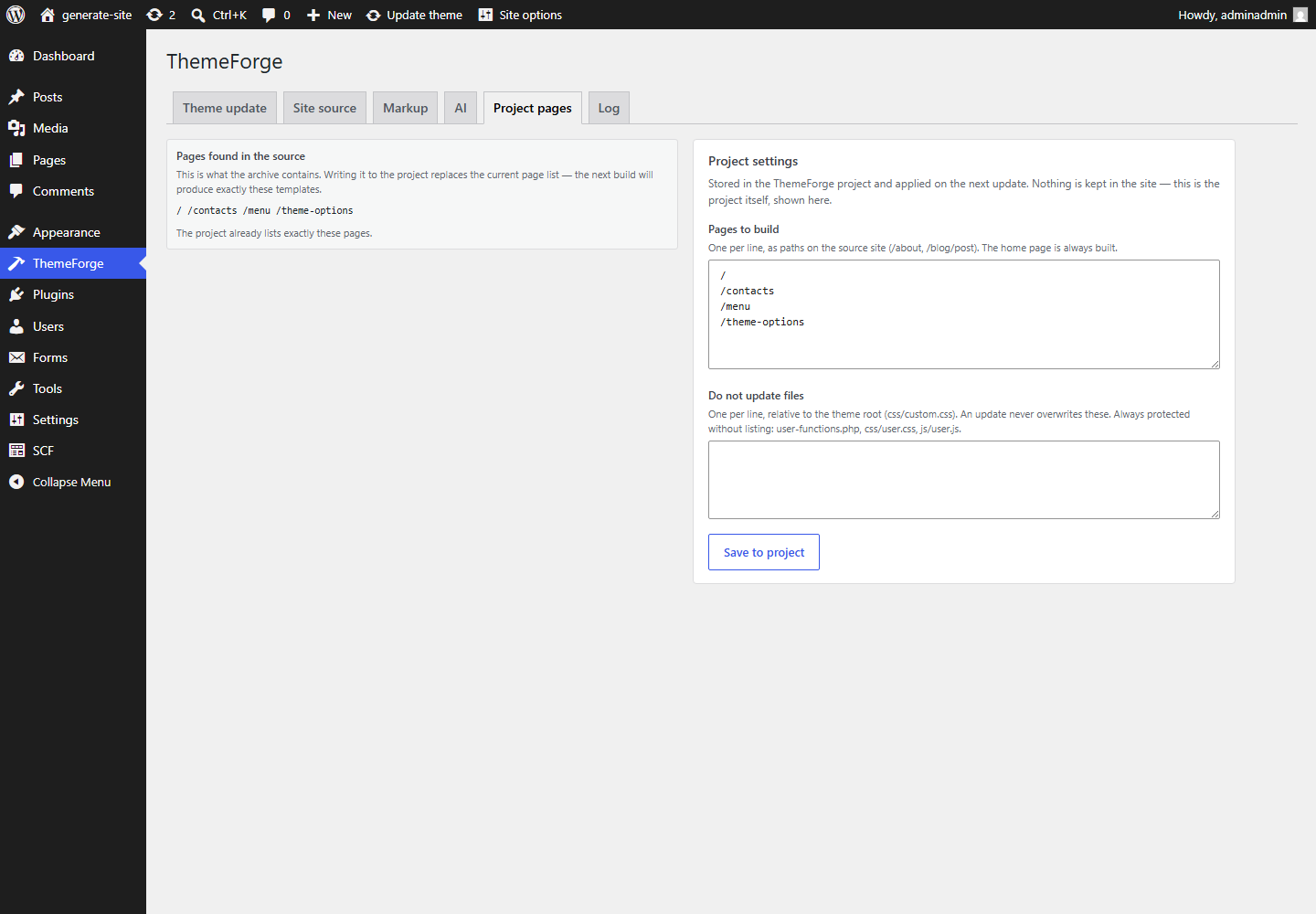
The list lives in the project, not in the theme: the screen reads it over the network and writes back to the same place. There is no second copy to keep in sync.
Step 5. Build the theme
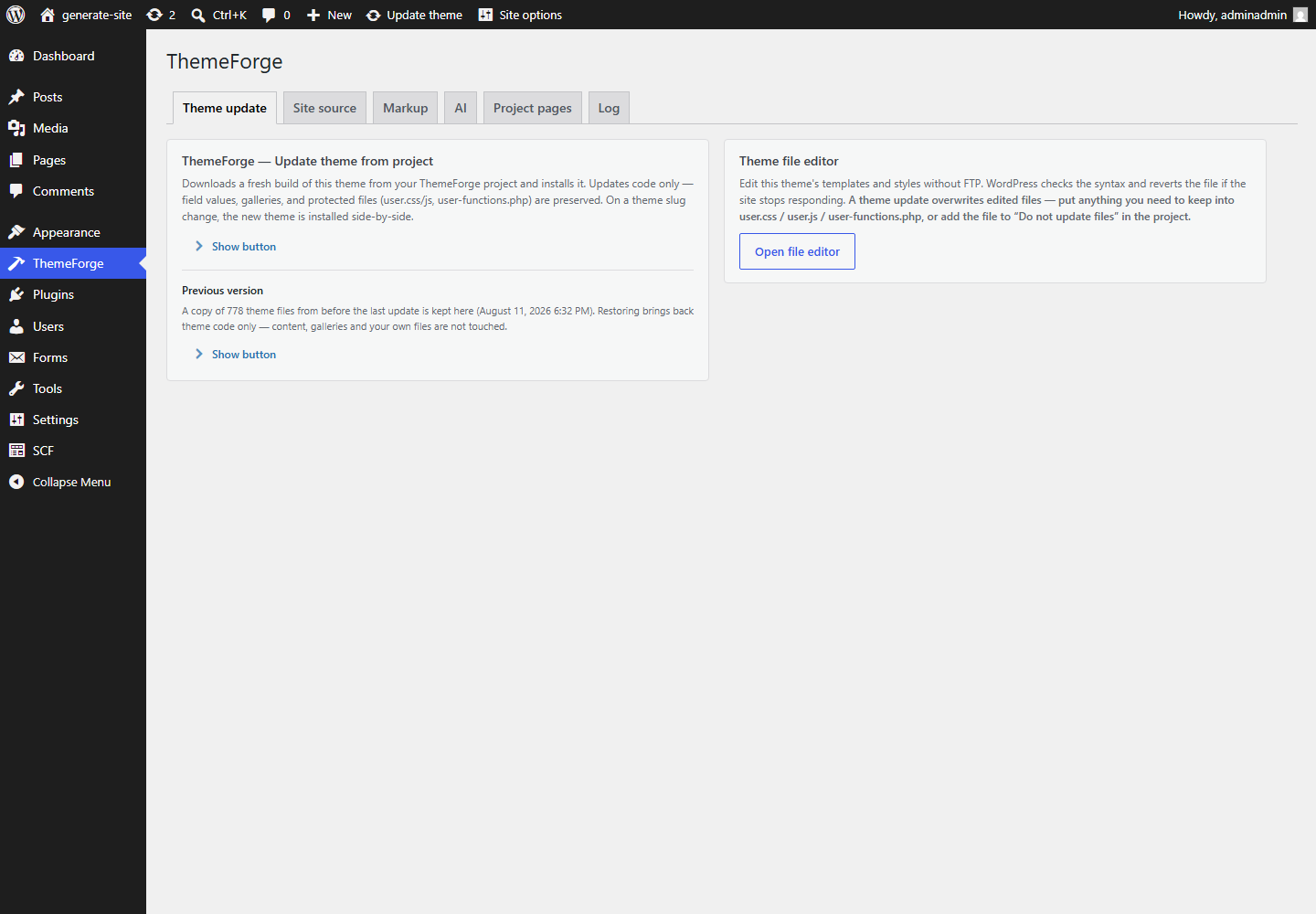
- The "Theme update" tab → "Show button" → "Update theme from project".
- The site sends HTML and CSS to the builder, receives the finished theme and installs it itself. Usually under a minute.
- Images and fonts are laid out from the local storage, and repeat builds do not duplicate the media library.
An update cannot break the site quietly
Before installing, everything the archive would overwrite is copied aside. After installing, the site asks itself for three pages: the home page, a search and a non-existent address. If the new version did not render, it is rolled back whole rather than leaving you with a blank screen; if only one secondary page failed, only that page returns to the previous version.
Every attempt shows up in the update log next to the button, together with the warnings and markup issues of that particular build. "Restore previous version" brings the theme code back by hand; content, galleries and your own files are untouched.
What survives an update: field values, galleries, the media library and your own files — user-functions.php, css/user.css, js/user.js — plus anything you listed in the project as not to be updated.
Step 6. Content into the fields
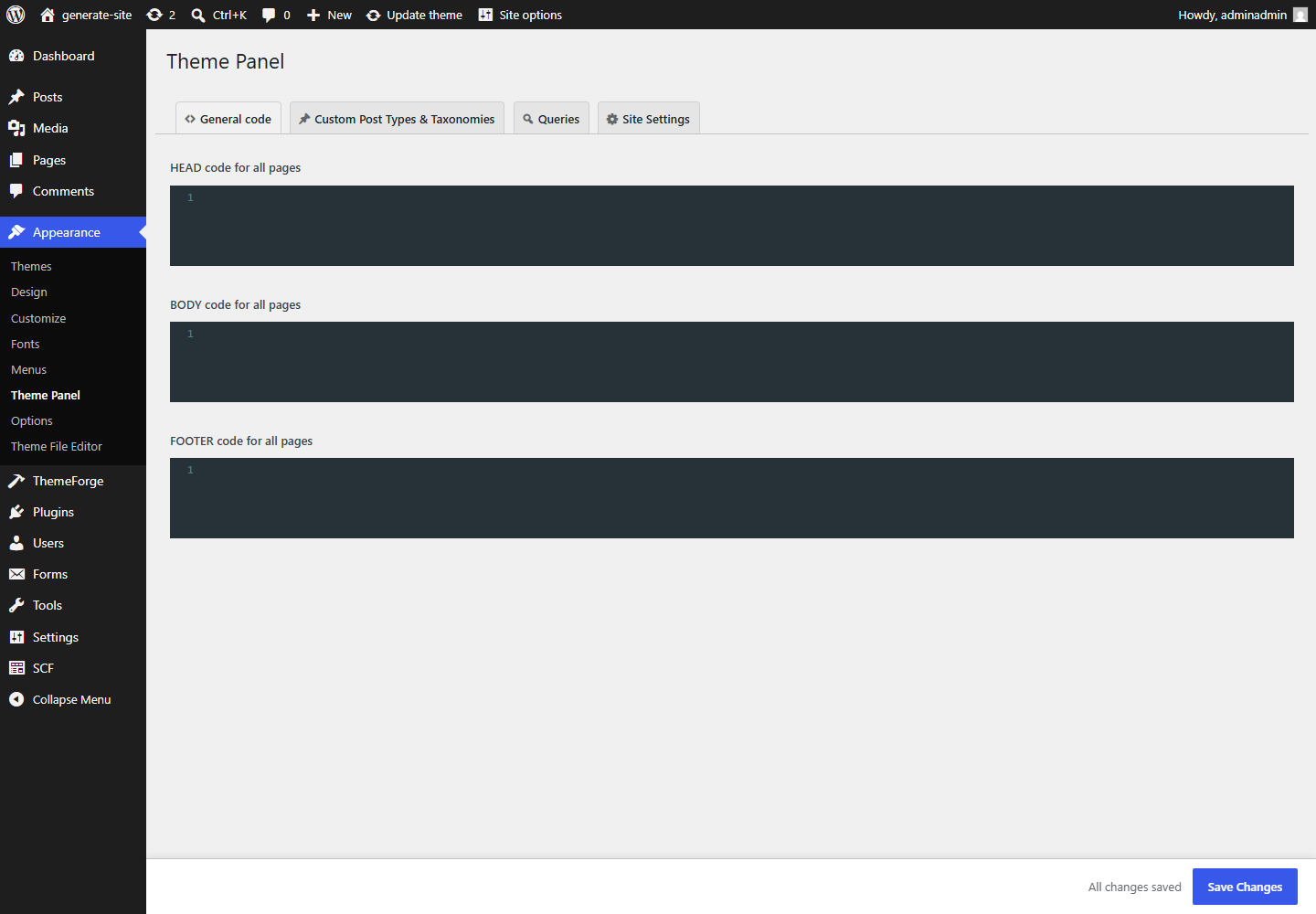
The theme is built, but the fields in wp-admin are still empty. Appearance → Theme Panel → the "Site Settings" tab → the "Site Data Import" block moves the texts and images from the source into the fields.
Top to bottom in that block: images first, then data, then menus. A separate button does everything at once, including the other languages.
The import ends with a report: how many pages and fields were written, and what was not written and why. An import log keeps the recent runs.
Galleries are protected by default: the import neither overwrites nor clears them, so photos you curated by hand stay where they are.
How to edit the source afterwards
The source lives on the site, so edits go there too. There are three ways, and they do not conflict: each one changes the same file.
Site Editor — the "Markup" tab
Opens a source page inside wp-admin: the element tree, classes, attributes, text, CSS rules and the markup problems it found. "Copy a task for an AI" assembles a description of the selected element to hand to an assistant.
An AI assistant — the "AI" tab
Any change at all, up to rebuilding a page from scratch. Needs WordPress 7.0; setup is below.
Upload the archive again
The fallback that always works: edit the source with any tool of your own and upload the ZIP again. The previous source is replaced whole.
No edit changes the site by itself: visitors see it only once you press "Update theme from project".
Site Editor: what it does and what it does not
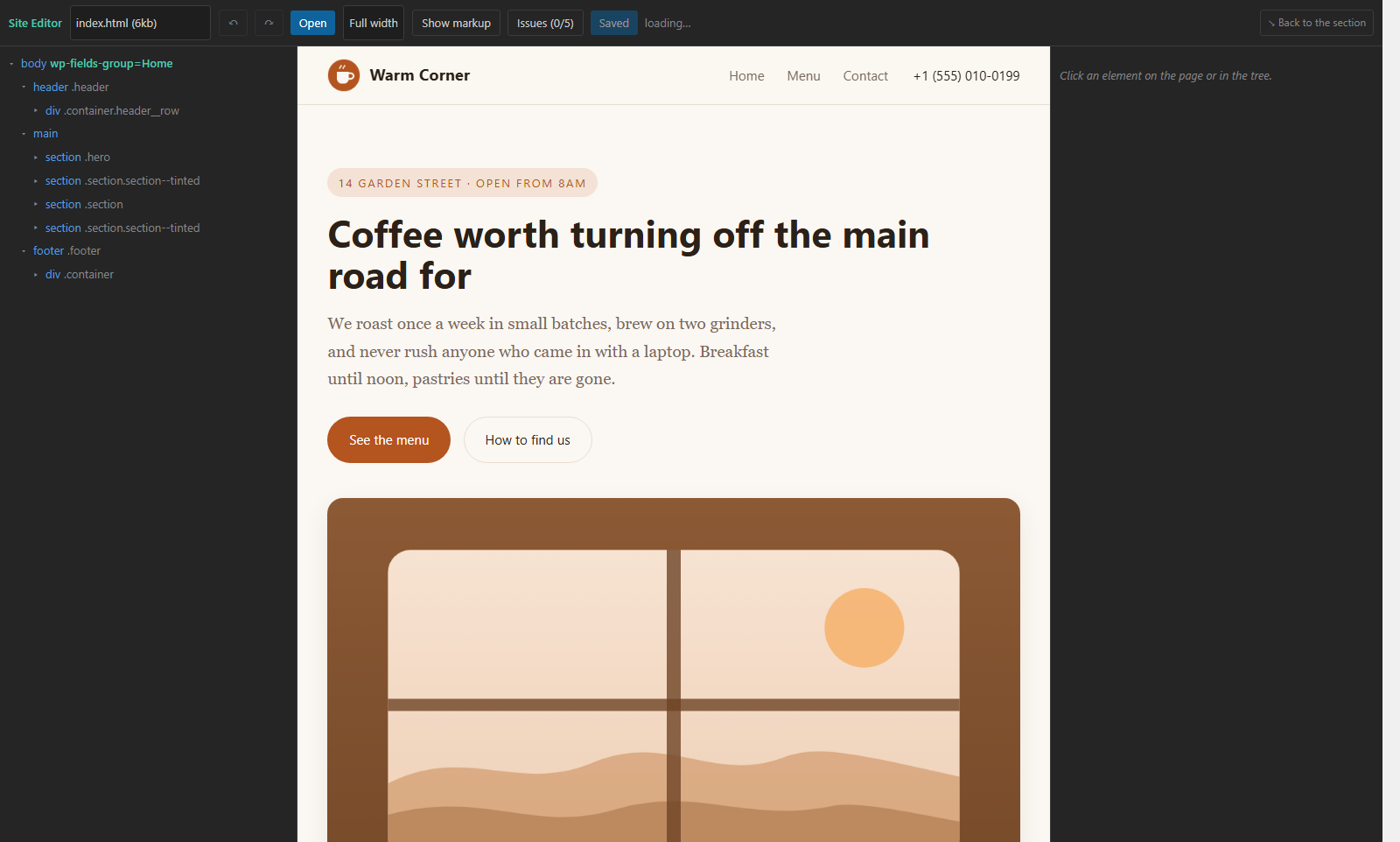
It does
- Add and remove attributes — the marks that say which element is a field and which is a repeating block.
- Edit text, fragment by fragment between nested tags rather than as one blob.
- Move an element up or down among its siblings.
- Show clashing names and other markup problems — before they reach the theme.
- Undo: the last edit, or the whole file back to its state before the save.
It does not
- It is not a layout editor. It shows styles but does not change them: you cannot redraw the design with the mouse.
- It does not create or delete pages — that is for the AI assistant or for re-uploading the archive.
- It edits the source, not the live site: visitors see nothing until the theme is rebuilt.
By design: a full visual editor is a product of its own, and what is needed here is an eye on the result and control over it.
Connecting an AI assistant
The AI channel is built on WordPress 7.0's own abilities. The theme registers a set of abilities around the source: read a file, list markup problems, replace a fragment, rewrite a page, add and delete a file. None of them is open to an anonymous visitor.
The site's own AI
WordPress 7.0 can talk to models itself: the provider key is entered in the WordPress settings, no extra plugin required. Such an assistant acts as you and within your permissions.
An outside assistant
For an AI to connect from outside you need a bridge — the MCP Adapter plugin. It connects with an application password (Users → Profile → Application Passwords): your real password is never typed anywhere, and the access is revoked with one click.
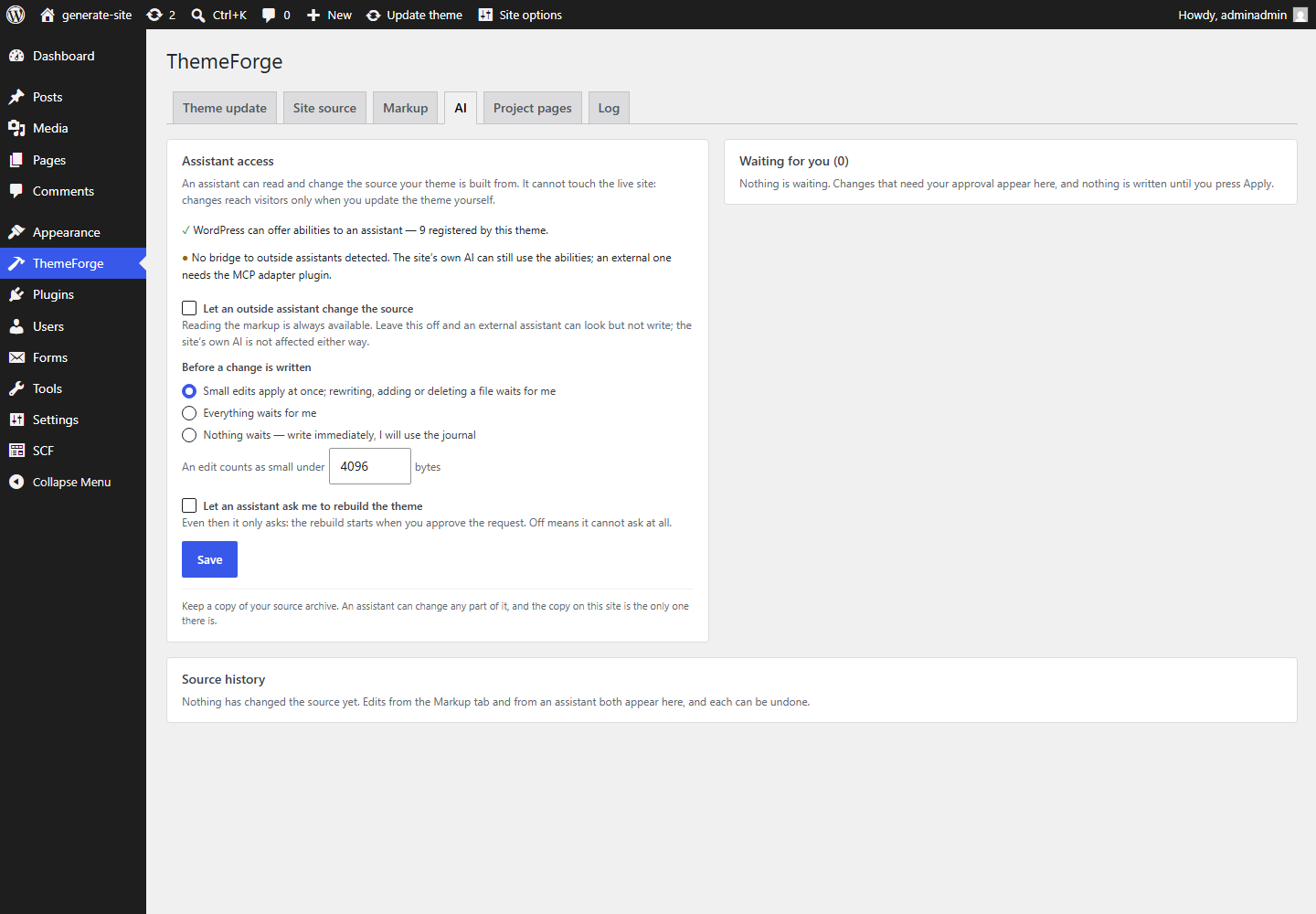
The "AI" tab reports the state itself: how many abilities are registered, whether it can see a bridge to the outside, and how many abilities that bridge exposes on behalf of other plugins — the theme does not answer for those.
A separate ability hands the assistant your theme's attribute dictionary and placement rules, so it annotates by the theme's rules rather than its own ideas.
What you risk by giving an AI access
Plainly: an assistant can ruin the markup, wipe a block you needed or rewrite a page differently from what you meant. It reaches the live site only through your own Update button — but it really does change the source.
Writing is off by default for an outside assistant
Reading the markup is always available; writing only if you switch on "Let an outside assistant change the source". The theme enforces this itself rather than trusting the bridge plugin: even if the bridge passes the call along, the theme will not carry it out.
The approval queue
The "Before a change is written" setting decides what applies at once and what waits for you. By default a small edit applies while rewriting, adding or deleting a file queues up; you can also make everything wait, or let everything through and watch the journal instead. A queued request shows exactly what is proposed and writes nothing until you press Apply.
The journal and undo
Recent changes to the source are kept together with the version each of them replaced: you can see who changed what — you in the Markup tab, the site's own assistant, or an outside one — and undo any of them. An undo becomes a journal entry itself, so it too can be undone.
Rebuilding the theme needs your consent
An assistant cannot build and install the theme at all. A separate switch only lets it ask: the rebuild starts when you approve the request.
On top of that there is a rate limit: an assistant stuck in a loop hits a write limit and is refused rather than writing forever.
And still the real limit is your own archive. The journal keeps the last fifty changes, not the whole history: if an assistant has been quietly degrading the markup for a week, there is nothing left to roll back to.
Who sees what on the site
From the outside, without logging in, nothing of the source is reachable: not the pages, not the images, not even the list of files. There are no links with a key in them that could be forwarded — access is decided by the login session and the user's permissions.
- An administrator: everything — uploading the archive, editing the markup, building the theme, the assistant settings, and the scripts and service files of the source.
- An editor: preview of the source pages and read access to their HTML and CSS. They cannot change the markup.
Hence the practical rule: upload only your own archive. Anything inside the HTML and CSS of someone else's template is visible to every user of the site with editor rights. Scripts (js, json, source maps) are served to administrators only — while HTML and CSS deliberately stay open to an editor, or they could not see the page as a whole.
The preview works like a draft post in WordPress: the link can be passed on, but it only opens for a logged-in user with the right permissions. Search engines never index the source pages.
Backups: what comes back and what does not
The source storage lives inside wp-content/uploads, so it travels with the site: a backup plugin or a hosting backup picks it up by itself, with nothing to configure.
Everything generated comes back from the source: page templates, fields, markup, the layout of images and fonts.
What does not come back this way
Hand-written additions: user-functions.php, css/user.css, js/user.js and edits made directly in the theme files. A theme update protects them and never overwrites them — but that is a different thing: protection during an update and survival after losing the site are not the same.
The practical rule: keep the ZIP you uploaded, and switch on ordinary site backups. That is enough for no mistake — yours, ours or an assistant's — to cost more than half an hour.
If the project disappeared from the panel
A project can be deleted, and an account can be lost. The source stays on the site regardless: the storage is tied to the site rather than to the project, and it survives both a theme reinstall and a rename.
- Create a new project and tick "the source will be uploaded on the site" in it.
- Download the new blank theme and install it over the current one.
- Press "Update theme from project" — the build runs from the source that was on the site all along. There is nothing to upload again.
The recovery screen shows how many files and pages are stored on the site, plus the page list of the lost project so you do not have to type it out again. If there is no source on the site, the screen says so instead of promising the impossible.
The honest boundary: what comes back is what was generated. Hand edits in the theme files are not restored this way — see the section above.
Common questions
The update said my hosting cut the request off
It means the hosting closed the connection before the installer could report back — and the theme may well have installed anyway. Open the site and go to wp-admin: on your next visit the update finishes its verdict by itself, checking the site and rolling back if anything broke. If nothing changed, try again, or install the theme ZIP by hand through Appearance → Themes → Add New.
Some images did not appear after the build
The "Site source" tab lists the files the markup refers to but the archive does not contain. Usually those are images that lived at an external address rather than in the site folder. Put them in the archive and upload it again.
I reinstalled the theme — do I upload the archive again?
No. The storage lives outside the theme, so after a reinstall the screen offers to build from the source already there. A second upload is only needed when the source itself changed.
Only the home page was built
What gets built is what the project's page list contains. The "Write this list to the project" button on the "Project pages" tab puts the archive's real composition there.
Can two people work on one project?
Yes: the "Access" tab of a project lets in another ThemeForge user — see the Access section for how. It changes nothing about permissions on the site itself; WordPress still decides those.